How to Fix GB WhatsApp Update Issue
GB WhatsApp is one of the most popular modified versions of WhatsApp that comes with extra features like custom themes, hidden last seen, and more privacy controls. Many users face problems when they try to update GB WhatsApp because it is not available on the Google Play Store. At gbwsplus.com, you will find the latest and safest version of GB WhatsApp to download and install without any hassle.
Why Does the GB WhatsApp Update Issue Happen?
The most common reason for the GB WhatsApp update issue is that users try to update it like a regular app, but it does not work that way. GB WhatsApp needs to be updated manually by downloading the new APK file from a trusted source. If you use an old or expired version, you may get banned or lose access to your chats.
Common GB WhatsApp Update Problems
Users usually face these issues when updating GB WhatsApp:
- “WhatsApp not installed” error after downloading the APK
- Version expired message appearing on the screen
- Chats getting deleted after the update
- Installation blocked by phone security settings
- Account temporarily banned due to using an outdated version
- APK file not downloading properly from unsafe sources
- Storage permission errors during installation
- Phone restarting during APK installation
- Verification OTP not received after fresh install
- Black screen appearing when opening the app after update
Step-by-Step Guide to Fix GB WhatsApp Update Issue
- Step 1: Backup Your Chats First
Before you do anything else, always backup your GB WhatsApp chats so you do not lose any important messages. Go to GB WhatsApp Settings, tap on Chats, and then select Chat Backup. This one simple step saves you from a lot of stress later. - Step 2: Uninstall the Old Version
If your current version is expired or not working, you need to uninstall it from your phone first. Go to your phone Settings, find GB WhatsApp, and tap Uninstall. Do not worry your backup is already saved, so your chats are safe. - Step 3: Enable Unknown Sources
Your phone may block the installation of APK files by default because it only trusts the Play Store. Go to Settings, then Security, and turn on the option that says “Allow installation from unknown sources.” This step is necessary to install any APK file manually. - Step 4: Download the Latest APK
Now visit a trusted and updated source to download the latest GB WhatsApp APK file. Make sure the version you download is the newest and virus-free APK. Using an outdated or unsafe APK is the main cause of bans and errors. - Step 5: Install and Verify Your Number
Once the APK is downloaded, open the file and tap Install. After installation, open GB WhatsApp and verify your phone number using the OTP you receive. Your chats will be automatically restored from the backup you created earlier. - Step 6: Restore Your Chat Backup
After verifying your number, GB WhatsApp will automatically ask you to restore your previous chats. Tap Restore and wait for the process to complete before using the app. All your messages, media, and contacts will be back exactly as they were before the update. - Step 7: Check App Permissions
Once the app is installed, go to your phone Settings and make sure GB WhatsApp has all the necessary permissions enabled like storage, contacts, microphone, and camera. Without these permissions, the app may not work properly even after a successful update. Granting all permissions ensures a smooth and error-free experience right from the start.
GB WhatsApp Update Error Comparison Table
| Error | Cause | Fix |
|---|---|---|
| Version Expired | Old APK in use | Download latest APK |
| App Not Installed | Conflicting version | Uninstall old app first |
| Account Banned | Outdated version | Update immediately |
| Installation Blocked | Unknown sources off | Enable in Settings |
| Chats Deleted | No backup taken | Always backup before update |
| APK Not Downloading | Unsafe source | Use a trusted site |
| Black Screen on Open | Corrupt APK file | Re-download and reinstall |
| OTP Not Received | Network issue | Check SIM and internet |
| Storage Permission Error | Permissions not granted | Allow all permissions manually |
| Phone Restarting | Low storage space | Free up space before install |
How to Fix “GB WhatsApp Version Expired” Error
The version expired error is one of the most frustrating problems GB WhatsApp users face, and it usually means your current APK is too old to connect to WhatsApp servers. When this happens, the app simply stops working and shows a message that forces you to update. The only fix is to immediately download the latest GB WhatsApp APK and install it fresh on your device.
Here is what you should do when you see the version expired error:
- Do not try to log in again with the old version
- Backup your chats right away before the app locks you out
- Search for the latest GB WhatsApp version from a safe source
- Uninstall the old version and install the new APK
- Verify your number and restore your backup to get everything back
How to Fix GB WhatsApp “App Not Installed” Error
The “App Not Installed” error usually appears when there is a conflict between the version you are trying to install and the one already on your phone. This can also happen if the APK file is corrupted or incomplete due to a failed download. The best solution is to delete the downloaded file, clear your phone’s cache, and download the APK again from a reliable source.
Follow these steps to fix this error quickly:
- Delete the old APK file from your downloads folder
- Clear cache of your file manager and browser
- Make sure your phone has enough storage space for the new file
- Re-download the APK and check that the file size is correct
- Disable any antivirus or security app temporarily during installation
- Install the APK again and the error should be gone
How to Fix GB WhatsApp Ban Issue After Update
Many users get a temporary ban on their account after updating GB WhatsApp, and this usually happens because they were using an outdated version for too long. WhatsApp’s system detects old or unsupported modified versions and restricts the account temporarily. The good news is that most bans are temporary and your account gets restored within 24 to 72 hours if you update to the latest version.
Here is how you can deal with the ban issue:
- Do not panic most bans are temporary and lift on their own
- Immediately update to the latest GB WhatsApp version
- Avoid sending bulk messages or broadcast messages right after unbanning
- Do not use automated or bot features inside GB WhatsApp
- If the ban lasts more than 72 hours, try registering with a different number
- Always keep your app updated to avoid future bans
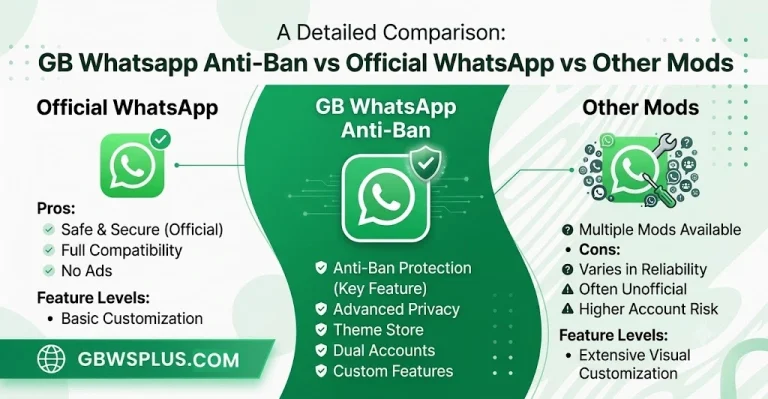
GB WhatsApp vs Official WhatsApp: Update Process Comparison
| Feature | GB WhatsApp | Official WhatsApp |
|---|---|---|
| Update Method | Manual APK Download | Auto via Play Store |
| Update Frequency | Every few weeks | Regular auto updates |
| Backup Before Update | Recommended manually | Auto cloud backup |
| Risk of Ban | Possible if outdated | No ban risk |
| Custom Features | Yes, many extras | Limited features |
| Update Source | Trusted APK sites | Google Play Store |
| Unknown Sources Required | Yes | No |
| OTP Verification After Update | Required if reinstalled | Not always required |
What to Do If GB WhatsApp Is Not Opening After Update
Sometimes after a successful update, GB WhatsApp does not open or shows a black screen, which can be very confusing. This usually happens because of a corrupted cache or leftover files from the old version that are conflicting with the new one. The fastest fix is to go to your phone Settings, find GB WhatsApp, clear the cache and data, and then reopen the app.
If clearing cache does not work, try these steps:
- Restart your phone after clearing cache and data
- Make sure the APK you installed is not corrupted
- Check if your Android version is compatible with the latest GB WhatsApp
- Free up internal storage if your phone is low on space
- Re-download and reinstall the APK if the problem continues
- Make sure all app permissions are granted in phone settings
How to Avoid GB WhatsApp Update Issues in the Future
The best way to avoid these problems is to always check for new updates regularly and never use an expired version for too long. Always download your APK from a reliable and safe source like gbwsplus.com so you get the clean and latest file every time. Keeping your app updated also protects your account from getting temporarily banned by WhatsApp.
Tips to Keep GB WhatsApp Always Updated and Working
Here are some smart habits to follow so you never face update issues again:
- Set a reminder every 2 to 3 weeks to check for a new GB WhatsApp version
- Always backup your chats to local storage before installing any new version
- Keep the Unknown Sources option enabled in your phone settings permanently
- Download APK files only from verified and trusted websites
- Delete old APK files from your downloads folder after installation
- Never ignore the “version expiring soon” warning inside the app
- Keep at least 500MB of free storage on your phone for smooth installation
- Restart your phone after every update for best performance
Is It Safe to Update GB WhatsApp?
Yes, updating GB WhatsApp is completely safe if you follow the right steps and download the APK from a verified source. The key is to always backup your data before updating and make sure you are getting the latest version. Millions of users around the world update GB WhatsApp regularly without any issues by following these simple steps.
Frequently Asked Questions About GB WhatsApp Update Issue
Q: Will I lose my chats if I update GB WhatsApp? No, you will not lose your chats if you take a backup before uninstalling the old version. GB WhatsApp saves your backup locally on your phone storage. When you reinstall and verify your number, just tap Restore and all your messages will come back.
Q: How often should I update GB WhatsApp? You should update GB WhatsApp every 2 to 4 weeks or as soon as a new version is released. Using an old version for too long increases the risk of getting a temporary account ban. Staying updated also gives you access to the latest features and bug fixes.
Q: Why is my GB WhatsApp showing “version expired” even after updating? This happens when you install an older APK by mistake instead of the latest one. Always double-check the version number before installing. Make sure you are downloading from a source that always has the most recent and updated APK file.
Q: Can I update GB WhatsApp without losing media files? Yes, your photos, videos, and voice notes are stored in your phone’s internal storage and are not deleted when you update GB WhatsApp. Only if you completely format your phone or delete the WhatsApp folder will you lose media. Always keep a copy of your media folder in a safe place just to be extra careful.
Q: What should I do if the update keeps failing? First, clear your browser cache and delete the old APK file. Then re-download the latest APK from a fresh link and make sure your internet connection is stable during the download. If installation still fails, restart your phone and try again after freeing up some storage space.
Final Tips to Fix GB WhatsApp Update Issue
Here are some quick tips to keep in mind:
- Always backup chats before starting any update
- Never download APK files from random or unknown websites
- Keep Unknown Sources enabled in your phone settings
- Do not use expired versions for more than a few days
- Restart your phone after installation for smooth performance
- Check for new updates every few weeks to stay protected
- Grant all app permissions after every fresh installation
- Clear cache and data if the app does not open after updating
GB WhatsApp gives you features that the official app simply does not offer, and keeping it updated is the key to enjoying those features without interruption. Visit gbwsplus.com to always get the most recent, safe, and working APK file for your device. Follow the steps above and you will never face the GB WhatsApp update issue again.