How to Fix GB WhatsApp Not Installing
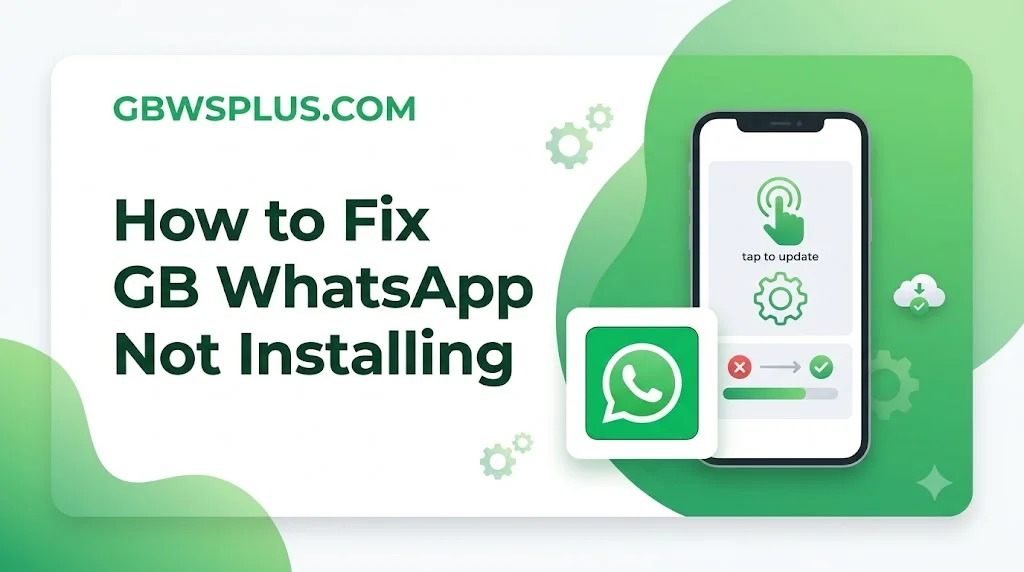
Many users face the GB WhatsApp not installing issue on their Android devices. This problem usually happens due to wrong settings, storage issues, or an outdated APK file. The good news is that this issue is easy to fix if you follow the right steps.
GB WhatsApp is one of the most popular modified WhatsApp versions used worldwide. It offers extra features like hiding blue ticks, custom themes, and increased file sharing limits. But before enjoying these features, you need to install it correctly on your device.
Why GB WhatsApp Is Not Installing on Your Device
There are several common reasons why GB WhatsApp fails to install on Android. Understanding the root cause helps you fix the problem quickly and without any confusion. Below are the most common reasons:
- Unknown Sources not enabled on your Android device
- Insufficient storage space on your phone
- Corrupted or incomplete APK file downloaded from an untrusted source
- Conflicting app version already installed on the device
- Android version not compatible with the GB WhatsApp APK
- Google Play Protect blocking the installation
- RAM overload due to too many background apps
- Pending system updates causing software conflicts
- Damaged APK file due to interrupted download
- Device security software flagging the APK as unsafe
What Does “App Not Installed” Error Mean on Android
The “App Not Installed” error is a standard Android error that appears when the system cannot complete the APK installation. It does not always mean the file is bad or unsafe it mostly means something on your device is blocking the process. Once you identify the exact cause, fixing the GB WhatsApp installation error becomes very straightforward.
Android shows this error in different situations for different devices. Some phones show it because of security restrictions, while others show it due to version conflicts or low memory. Knowing what triggers this error on your specific phone model helps you apply the right fix faster.
Step-by-Step Fix for GB WhatsApp Not Installing
1. Enable Unknown Sources (Allow Third-Party Apps)
The most common reason behind the GB WhatsApp installation error is that your phone blocks apps from outside the Play Store. You need to enable Unknown Sources in your phone settings to allow the installation. Follow these steps:
- Go to Settings on your Android phone
- Tap on Security or Privacy
- Find Unknown Sources or Install Unknown Apps
- Toggle it ON to allow third-party app installation
On Android 8.0 and above, the Unknown Sources setting works differently. Instead of one global toggle, Android asks for permission per app usually the browser or file manager you used to download the APK. Simply tap “Allow from this source” when the prompt appears and the installation will proceed.
2. Delete the Old or Conflicting Version
If you already have WhatsApp or an older GB WhatsApp installed on your device, it can block the new installation. You must uninstall the previous version completely before installing the new APK. Go to Settings → Apps → WhatsApp or GB WhatsApp → Uninstall.
After uninstalling, also clear any leftover data from the old app. Go to Settings → Apps → find the app → Clear Data and Clear Cache. This removes all traces of the old installation and gives the new APK a clean path to install without any conflict.
3. Clear Storage Space on Your Phone
Low storage is another major reason why GB WhatsApp does not install properly. Your phone needs enough free space to extract and install the APK file. Delete unnecessary files, photos, or apps to free up at least 200–300 MB of storage.
You can also move your media files to an SD card or cloud storage to create more room on internal memory. GB WhatsApp installs on internal storage by default, so clearing internal space specifically is very important. After freeing up space, try the installation again and it should work smoothly.
4. Download a Fresh and Updated APK File
A corrupted or old APK file will always fail during installation. Always download the latest version of GB WhatsApp from a trusted and updated source like gbwsplus.com. Delete the old downloaded file and download a fresh one to avoid installation errors.
An interrupted internet connection during download is a very common cause of a damaged APK file. Make sure you have a stable Wi-Fi or mobile data connection before starting the download. Once the download is complete, check the file size to make sure it matches the listed size on the download page.
5. Disable Google Play Protect Temporarily
Google Play Protect sometimes blocks the installation of modified apps like GB WhatsApp. You need to turn it off temporarily to complete the installation. Go to Play Store → Profile Icon → Play Protect → Turn Off.
After installation is complete, you can turn Play Protect back on for regular device security. Keeping it off permanently is not recommended as it protects your phone from genuinely harmful apps. This is just a temporary step needed only during the GB WhatsApp installation process.
6. Clear Cache of Package Installer
The Package Installer is the built-in Android tool that handles all APK installations. If its cache becomes corrupted, it can block the installation of any APK including GB WhatsApp. You can fix this by going to Settings → Apps → Show System Apps → Package Installer → Clear Cache.
After clearing the cache, restart your phone and try installing the APK again. This step is often overlooked but it fixes installation errors on many Android devices. It takes less than a minute and can solve the problem without any other changes.
7. Restart Your Phone Before Installing
Sometimes a simple restart fixes hidden background errors that block the installation. After restarting, try installing the GB WhatsApp APK again. This clears the cache and refreshes system settings.
A phone restart also closes all background apps that may be using memory or conflicting with the installer. Many users skip this step and try complex fixes first, but a restart alone often solves the issue. Always restart your phone as the first step before trying anything else.
8. Check and Update Your Android Version
Outdated Android versions can sometimes be incompatible with the latest GB WhatsApp APK builds. If your phone is running a very old Android version, the app may refuse to install or crash immediately after. Go to Settings → About Phone → Software Update and install any available updates.
GB WhatsApp requires a minimum of Android 5.0 (Lollipop) to function properly. If your device runs below this version, the APK will not install at all. Updating your Android system also improves overall security and performance of your device.
9. Check for MIUI or Custom ROM Restrictions
Users with Xiaomi, OPPO, Vivo, or Realme phones often face extra restrictions due to custom Android skins. These custom ROMs have built-in security features that block third-party APK installation even when Unknown Sources is enabled. You need to look for additional permission settings specific to your phone brand.
On MIUI (Xiaomi phones), go to Settings → Additional Settings → Privacy → Install Unknown Apps. On OPPO or Realme, go to Settings → Additional Settings → Safety → Unknown Sources. These brand-specific steps are essential to fix the GB WhatsApp not installing issue on these devices.
10. Use a File Manager to Install the APK
Sometimes your browser’s built-in installer does not handle APK files correctly. Instead of tapping the APK directly from the browser download, open it through a trusted file manager app. Navigate to your Downloads folder, find the GB WhatsApp APK, and tap it from there to start the installation.
This method gives the Package Installer cleaner access to the file and avoids any browser-related permission conflicts. Many users have fixed the installation error simply by switching from browser install to file manager install. It is a quick and simple workaround that works on almost all Android phones.
GB WhatsApp Installation Error: Quick Fix Table
| Problem | Cause | Fix |
|---|---|---|
| App not installed error | Unknown Sources disabled | Enable Unknown Sources in Settings |
| Installation failed | Old version conflict | Uninstall previous WhatsApp/GB WhatsApp |
| APK not opening | Corrupted file | Download fresh APK from gbwsplus.com |
| Installation stuck | Low storage | Free up 200–300 MB space |
| Blocked by phone | Play Protect ON | Disable Play Protect temporarily |
| App crashes after install | Incompatible Android version | Update Android or check compatibility |
| Error on MIUI phones | Custom ROM restrictions | Enable install permissions in MIUI settings |
| Installation stops midway | RAM overload | Restart phone and close background apps |
| APK not recognized | Damaged download | Re-download with stable internet connection |
| Package installer error | Corrupted installer cache | Clear Package Installer cache |
Check Your Android Version Compatibility
GB WhatsApp requires a minimum Android 5.0 (Lollipop) or higher to install and run properly. If your Android version is older than this, the app will not install or work correctly. Always check your Android version before downloading the APK file.
| Android Version | GB WhatsApp Compatibility |
|---|---|
| Android 4.4 and below | ❌ Not Supported |
| Android 5.0 – 5.1 | ⚠️ Partially Supported |
| Android 6.0 – 7.1 | ✅ Supported |
| Android 8.0 – 9.0 | ✅ Fully Supported |
| Android 10 – 11 | ✅ Fully Supported |
| Android 12 – 13 | ✅ Fully Supported |
| Android 14 and above | ✅ Fully Supported |
Things to Check Before Installing GB WhatsApp
| Checklist | Status |
|---|---|
| Unknown Sources Enabled | ✅ Required |
| Old WhatsApp Uninstalled | ✅ Required |
| Enough Storage Available | ✅ Required |
| Fresh APK Downloaded | ✅ Required |
| Play Protect Disabled | ✅ Recommended |
| Android 5.0 or Higher | ✅ Required |
| Phone Restarted Before Install | ✅ Recommended |
| Package Installer Cache Cleared | ✅ Recommended |
| Brand-Specific Permissions Checked | ✅ Required for MIUI/OPPO/Vivo |
| Stable Internet During Download | ✅ Required |
Common Mistakes People Make While Installing GB WhatsApp
Most users make small mistakes that lead to the GB WhatsApp not installing error. Avoiding these mistakes saves time and makes the installation process smooth and error-free. Here are the most common mistakes to avoid:
- Not uninstalling the old version before installing the new one
- Downloading from random websites that provide outdated or modified APK files
- Skipping the Unknown Sources permission step on their phone
- Installing over a slow or unstable internet connection causing a damaged download
- Ignoring the storage warning and trying to install without enough free space
- Forgetting to disable Play Protect which blocks third-party app installation
- Not restarting the phone after making settings changes
- Using an old APK file that is no longer compatible with the current Android version
How to Backup WhatsApp Data Before Switching to GB WhatsApp
Before you fix the installation issue and switch to GB WhatsApp, it is important to back up your WhatsApp chats and media. Uninstalling WhatsApp without a backup means you will lose all your messages permanently. Follow these steps to create a safe backup:
- Open WhatsApp → Settings → Chats → Chat Backup
- Tap “Back Up” to save your chats to Google Drive or local storage
- Once backup is complete, uninstall WhatsApp from your phone
- Install GB WhatsApp and verify your number
- Restore your backup when prompted during the setup process
This process ensures that all your old messages, media, and contacts are preserved after switching. Many users skip this step and lose important conversations. Always back up before making any changes to your messaging apps.
Frequently Asked Questions About GB WhatsApp Not Installing
Q: Why does my phone say “App Not Installed” for GB WhatsApp? This error usually means Unknown Sources is disabled, the old app is still installed, or the APK file is corrupted. Follow the step-by-step fixes above to resolve it quickly.
Q: Can I install GB WhatsApp without uninstalling original WhatsApp? No, you cannot run both WhatsApp and GB WhatsApp on the same phone using the same number. You must uninstall the original WhatsApp first before installing GB WhatsApp.
Q: Is it safe to disable Google Play Protect to install GB WhatsApp? You can temporarily disable Play Protect just for the installation. After the app is installed, turn Play Protect back on. Keeping it disabled permanently is not recommended.
Q: Why does GB WhatsApp installation fail on my Xiaomi phone? Xiaomi MIUI has extra security settings that block third-party apps. Go to Settings → Additional Settings → Privacy → Install Unknown Apps and enable permission for your browser or file manager.
Q: What is the minimum Android version needed for GB WhatsApp? GB WhatsApp requires Android 5.0 or higher to install and work properly. Devices running older Android versions are not supported.
Final Words
GB WhatsApp not installing is a very common issue but it has simple and clear solutions for every type of Android device. By following the complete guide above, you can fix any installation error within a few minutes without any technical knowledge. Always download the latest and verified APK file from gbwsplus.com to avoid corrupted files and installation failures.