How to Reduce GB WhatsApp Storage Usage (Clear Cache & Free Space)
Target Keywords: reduce gb whatsapp storage, clear gb whatsapp cache, gb whatsapp taking too much space, free up space gb whatsap
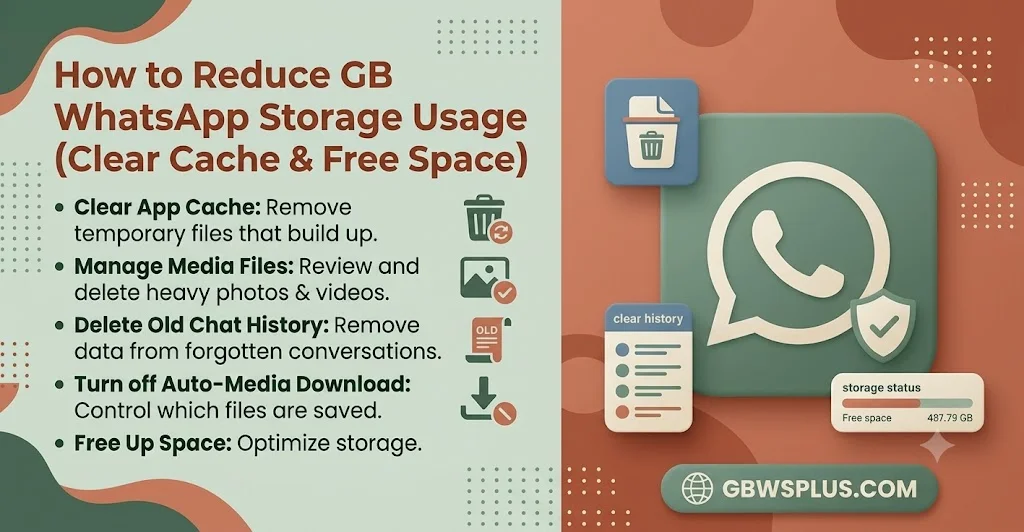
If GB WhatsApp has slowly eaten up gigabytes of space on your phone, you’re not alone. Between auto-downloaded photos, forwarded videos, voice notes, and status saves, the app’s storage footprint can balloon within a few months of daily use. The good news is that freeing up that space takes only a few minutes once you know where to look.
This guide walks through every practical way to shrink GB WhatsApp’s storage usage on Android, without deleting chats you actually want to keep.
Why Does GB WhatsApp Take Up So Much Space?
GB WhatsApp stores far more than just your text messages. Every photo, video, voice note, document, and GIF sent or received in a chat is saved locally on your device by default. On top of that, the app keeps a media folder for downloaded statuses, a separate cache for temporary files, and full chat backups if you’ve enabled them.
Three things typically cause storage bloat:
- Auto-download settings that save every photo and video automatically, even from group chats you barely check
- Forwarded media piling up in group chats, especially memes, voice notes, and videos that get reshared constantly
- An oversized cache that builds up over time and rarely clears itself
Step 1: Check What’s Actually Using Your Storage
Before deleting anything, see where the space is going.
- Open GB WhatsApp and tap the three-dot menu or Settings.
- Go to Data and Storage Usage, then Manage Storage.
- You’ll see a breakdown by chat, sorted from largest to smallest.
- Tap any chat to see exactly how much space photos, videos, documents, and voice notes are using.
This view is the fastest way to spot the one or two group chats responsible for most of your storage problem.
Step 2: Clear the App Cache
Cache files are temporary data the app uses to load things faster, but they pile up unnecessarily over weeks of use.
- Go to your phone’s Settings > Apps > GB WhatsApp.
- Tap Storage.
- Tap Clear Cache (not Clear Data, which would remove your chats).
This alone can recover a noticeable chunk of space, especially if you haven’t done it in a while. It’s safe to repeat every few weeks.
Step 3: Delete Large and Unwanted Media
Inside Manage Storage, GB WhatsApp lets you filter media by size, so you can find the heaviest files first.
- Tap Manage Storage, then look for the Larger than 5MB filter.
- Review the list this usually surfaces forwarded videos and voice notes you never needed to keep.
- Select the ones you don’t want and delete them directly from this screen.
You can also clear an entire chat’s media without deleting the conversation itself, which is useful for noisy group chats you want to stay in but don’t need to archive.
Step 4: Turn Off Auto-Download for Media
This is the single most effective long-term fix. If auto-download is on, every photo and video sent to you gets saved automatically, whether you wanted it or not.
- Go to Settings > Data and Storage Usage.
- Under Media Auto-Download, you’ll see separate toggles for Mobile Data, Wi-Fi, and Roaming.
- For each one, uncheck Photos, Videos, and Documents, or set them to manual.
With this off, media only downloads when you tap to view it, which keeps your storage usage predictable instead of growing on autopilot.
Step 5: Move or Back Up Old Chats Before Deleting
If you’re hesitant to delete media because you might want it later, back it up first. GB WhatsApp lets you export chat backups to local storage or Google Drive, so older conversations and their media can be archived off your phone entirely. Once backed up, you can safely clear the local copies without losing anything for good.
Step 6: Archive Chats You Don’t Need Daily Access To
Archiving doesn’t directly free up space, but it does keep your active chat list lean and makes it easier to identify which conversations are worth cleaning out. Combine archiving with the storage manager above for the best results.
A Few Extra Tips
- Reduce voice note clutter: Voice notes add up fast in active group chats. Periodically check the storage manager for chats with a high voice note count.
- Avoid saving every status: The built-in status downloader is handy, but downloaded statuses sit in your gallery indefinitely unless you clean that folder too.
- Restart after clearing cache: A quick restart helps the app fully release the freed-up space.
How Often Should You Do This?
For most users, checking storage usage once a month is enough to keep things under control. If you’re in several active group chats with heavy media sharing, doing a quick cleanup every two weeks will prevent the buildup from getting out of hand again.
Frequently Asked Questions
Will clearing cache delete my chats? No. Clearing cache only removes temporary files. Your messages, photos, and videos already saved in chats stay untouched. Clearing data, on the other hand, would remove everything, so always choose Clear Cache specifically.
Why does GB WhatsApp use more storage than the official app? It depends mostly on your settings and usage, not the app itself. Larger file-sharing limits in GB WhatsApp mean people tend to send bigger files through it, which adds up faster if auto-download stays on.
Can I recover media after deleting it from storage manager? Not from within the app. If you back up to Google Drive or local storage beforehand, you can restore from that backup. Otherwise, deleted media is gone for good.
Does turning off auto-download affect message delivery? No, your messages still arrive instantly. Only the media attachments wait for you to tap and download them manually.