How to Safely Download GB WhatsApp 2026 APK
Downloading GB WhatsApp sounds simple and it is, once you know where to look and what to avoid. The tricky part is that the internet is full of fake, outdated, or tampered APKs dressed up to look like the real thing. A bad download can put your device at risk or get your WhatsApp account flagged immediately.
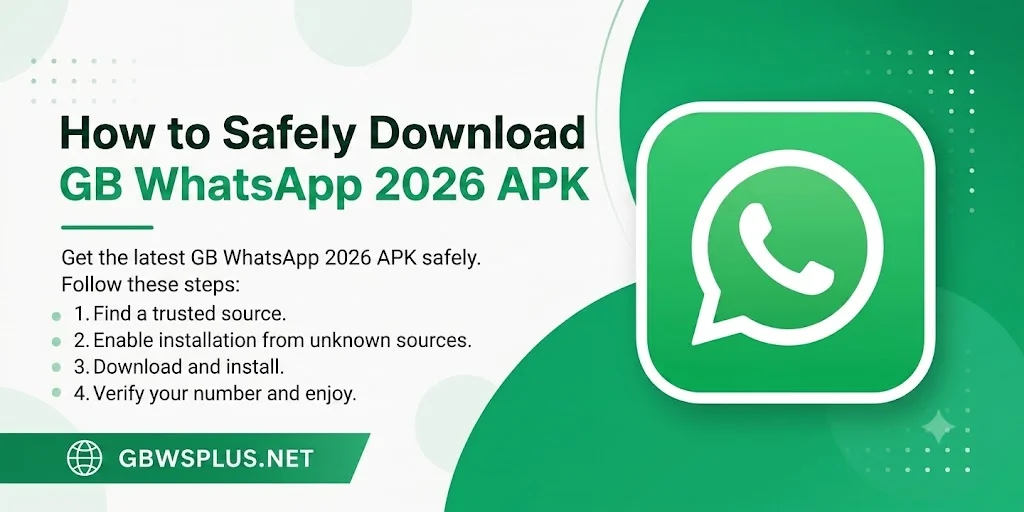
This guide walks you through a safe, step-by-step download and installation process for 2026.
Why Safe Downloading Matters
GB WhatsApp isn’t available on the Google Play Store it never has been, because Google doesn’t allow unofficial app modifications. That means every download happens outside of Google’s vetting process, which puts the responsibility of checking on you.
Common risks from unsafe downloads include:
- Spyware or malware hidden inside fake APKs
- Outdated builds that trigger instant bans from WhatsApp’s servers
- Phishing apps that steal your WhatsApp session or contacts
- Broken installs that corrupt your existing chat data
None of these are inevitable they’re avoidable with the right source and a few simple checks.
Step 1: Enable Installation from Unknown Sources
Since GB WhatsApp doesn’t come from the Play Store, Android needs permission to install it. Here’s how to grant that:
For Android 8 and above:
- Go to Settings → Apps
- Find your browser (Chrome, Firefox, etc.) or your file manager
- Tap it and look for “Install Unknown Apps” or “Allow from this source”
- Toggle it On
You can turn this back off after installing GB WhatsApp if you prefer to keep the setting locked down.
For older Android versions:
- Go to Settings → Security
- Enable “Unknown Sources”
Step 2: Download from a Trusted Source
This is the most important step. Go directly to [GBWSPLUS.COM/download] to get the latest verified APK. We check every build before listing it no tampered versions, no bundled extras, just the clean APK from the recognized developer release.
What to look for on any APK download page:
- Clear version number and release date listed
- A changelog or “what’s new” section for that version
- No redirect chains that take you through three other sites before the download starts
- HTTPS in the URL (the padlock icon in your browser)
If a site can’t tell you which version you’re downloading or redirects you repeatedly before the download starts, leave it.
Step 3: Verify the File Before Installing
Once the APK is downloaded, take 60 seconds to verify it before running it:
Option A: Check the File Size
Legitimate GB WhatsApp APKs are typically between 50 MB and 75 MB. If your downloaded file is 5 MB or 200 MB, something is wrong.
Option B: Scan with VirusTotal
- Go to virustotal.com on your phone’s browser
- Tap “Choose File” and select the downloaded APK
- Wait for the scan to complete it checks against 70+ antivirus engines
- If fewer than 3 engines flag it, it’s generally safe to proceed
- If 5 or more engines flag it, delete the file and download again from a different source
This takes about 2 minutes and is the single most reliable pre-install check available.
Step 4: Back Up Your Existing Chats
If you already have WhatsApp or an older GB WhatsApp installed, back up before proceeding. Even though installing a new APK over an existing one preserves data in most cases, backups cost nothing and protect you from the rare case where something goes wrong.
In GB WhatsApp (if updating):
- Go to Settings → Chats → Chat Backup
- Tap Back Up Now
- Confirm the backup completes successfully
In official WhatsApp:
- Go to Settings → Chats → Chat Backup
- Tap Back Up
Step 5: Install the APK
- Open your Downloads folder or tap the notification for the completed download
- Tap the APK file
- A prompt will appear asking if you want to install tap “Install”
- Wait for the installation to complete (usually 15–30 seconds)
- Tap “Open” when done
If you’re installing over an existing GB WhatsApp, your chats and media will be right where you left them. If it’s a fresh install, you’ll go through the number registration flow.
Step 6: Register Your Number
On first launch (or if you’re registering fresh):
- Enter your phone number with the correct country code
- Tap “Next”
- Choose SMS or Call for your verification code
- Enter the code when received
- Set up your profile name and photo
You’re in.
After Installation: A Few Safety Habits
- Keep it updated. The biggest risk to any GB WhatsApp install isn’t the initial download it’s letting it go stale. Return to [GBWSPLUS.COM] every 4–6 weeks to check for a new build.
- Don’t install from links sent in group chats. Links shared in WhatsApp or Telegram groups claiming to be “the latest GB WhatsApp” are a common vector for fake APKs. Always go directly to a known site.
- Disable “Unknown Sources” after installation. Leaving this setting permanently on makes your device more vulnerable to accidental installs from other sources.
Frequently Asked Questions
Is it safe to download GB WhatsApp at all? It carries more risk than using the official Play Store, but the risk is manageable with a trusted source, file verification, and keeping the app updated.
Do I need to uninstall my current WhatsApp first? Only if you want to replace official WhatsApp with GB WhatsApp on the same number. If you’re updating GB WhatsApp, install the new APK over the existing one.
Can I install GB WhatsApp alongside official WhatsApp? Yes, but they need to be registered on different numbers. You can’t run the same number on both simultaneously.
What’s the latest version of GB WhatsApp? Check [GBWSPLUS.COM/download] for the current version — we update the page with every new verified release.