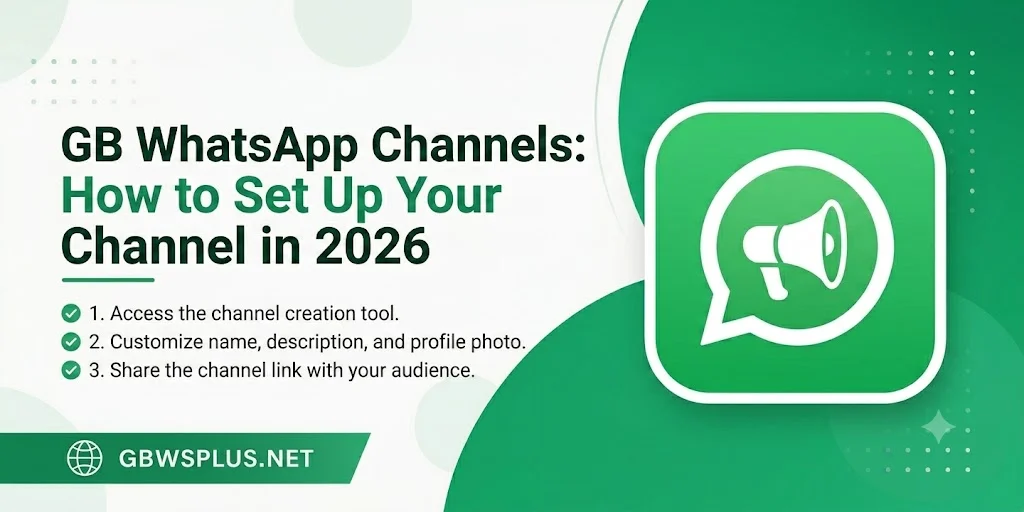
GB WhatsApp Channels: How to Set Up Your Channel in 2026
WhatsApp Channels have become one of the most useful broadcasting tools built into the platform and GB WhatsApp supports them too, with a few extra perks layered on top. Whether you want to keep friends updated, run a community, or broadcast content to followers without the noise of a group chat, setting up a Channel takes less than five minutes.
Here’s exactly how to do it.
What Are WhatsApp Channels?
Channels are a one-way broadcast feature. You post updates text, images, videos, polls, links and your followers receive them in a dedicated section of the app separate from their regular chats. Followers can react to posts but can’t reply publicly, keeping things clean and focused.
Think of it like a newsletter or a Telegram channel: you control the content, your audience subscribes, and nobody’s inbox gets cluttered with replies.
In GB WhatsApp, Channels work the same way as in the official app, with the added benefit that GB’s privacy tools still apply meaning more control over who sees what and how you’re visible as an admin.
Before You Start
Make sure you have:
- GB WhatsApp v18.80 or later installed (Channels were introduced in recent versions and may not appear in older builds)
- An active phone number registered on your GB WhatsApp account
- A stable internet connection during setup
If your version is outdated, visit the [GBWSPLUS.COM download page] and grab the latest build first.
Step-by-Step: How to Create Your GB WhatsApp Channel
Step 1: Open the Updates Tab
Launch GB WhatsApp and tap the Updates tab at the bottom of the screen (it looks like a circle/broadcast icon). This is where both Status updates and Channels live.
Step 2: Find the Channels Section
Scroll down past the Status section. You’ll see a Channels heading with a list of any channels you already follow. Below that, look for the “+” button or a prompt that says “Find Channels” tap it.
Step 3: Tap “Create Channel”
On the Channels discovery screen, tap “Create Channel” at the top. This opens the channel creation flow.
Step 4: Add Your Channel Name
Type your channel name. Choose something clear and relevant to what you’ll be posting about. You can change it later, but starting with a good name helps people find you.
Tap “Continue” when ready.
Step 5: Add a Description and Profile Picture (Optional but Recommended)
- Description: Tell potential followers what your channel is about in a sentence or two. Keep it specific — “Weekly tech tips for Android users” beats “My channel.”
- Profile picture: Tap the camera icon to upload a logo or image. Square images crop best.
Once done, tap “Create Channel.”
Step 6: Your Channel Is Live
That’s it — your channel is created. You’ll land on your channel’s page, ready to post your first update.
How to Post Your First Update
Tap the pencil/compose icon inside your channel. You can post:
- Text: plain messages, announcements, updates
- Photos and Videos: up to 30 items at once
- Polls: great for quick audience feedback
- Links: shared as rich previews when available
- Voice notes: for a more personal touch
Tap Send and your update goes to all your followers instantly.
How to Share Your Channel Link
To grow your audience, share your channel link anywhere:
- Open your channel page
- Tap the three-dot menu (top right)
- Select “Channel Info”
- Tap “Copy Link” and share it on social media, in bio links, or through direct messages
Anyone who taps the link can follow your channel with one tap, even if they don’t have you saved as a contact.
GB WhatsApp-Specific Tips for Channel Admins
Because you’re using GB WhatsApp rather than the official app, a few extra things are worth knowing:
- Admin Privacy: GB WhatsApp gives you finer control over what your followers can see about your account. Go to Settings → Privacy to review these before your channel grows.
- DND Mode: If your own channel notifications become noisy (from your own posting activity), you can use GB’s built-in Do Not Disturb mode to mute specific notification types without muting your followers’ experience.
- Themes Don’t Affect Channels: Your custom GB WhatsApp GB WhatsApp Download APK Official Updated Version 2026 theme applies only to your personal interface. Followers see the channel in whatever theme they use.
Managing Your Channel
Once your channel is running, you can access admin controls through Channel Info:
- Edit name, description, or picture anytime
- Delete the channel if you want to start fresh or shut it down
- View follower count (exact follower identities are private)
- Add admins if you want others to help post content
Frequently Asked Questions
Can followers see who else follows my channel? No. Follower lists are private. Only the admin can see the total follower count, not individual identities.
Can I run a channel and a regular account on the same number? Yes. Your channel is tied to your number, but it’s completely separate from your personal chats and groups.
Is there a follower limit? WhatsApp doesn’t publicly cap follower counts for channels. The feature is designed to scale.
Can I use GB WhatsApp Channels if some of my followers use the official WhatsApp app? Yes. Channels work across both official and modded WhatsApp clients. Your followers don’t need GB WhatsApp to follow you.
Setting up your channel takes under five minutes and opens up a clean, clutter-free way to reach your audience. Once you’ve posted a few updates, you’ll quickly see why Channels have become one of the most popular features in recent WhatsApp releases official or modded.